The window
The parts of the Senzor window and what each one shows.
Start the GUI with a project file, or without one to begin with an empty project:
# Open a project
senzor examples/showcase.toml

# Or start with an empty project
senzor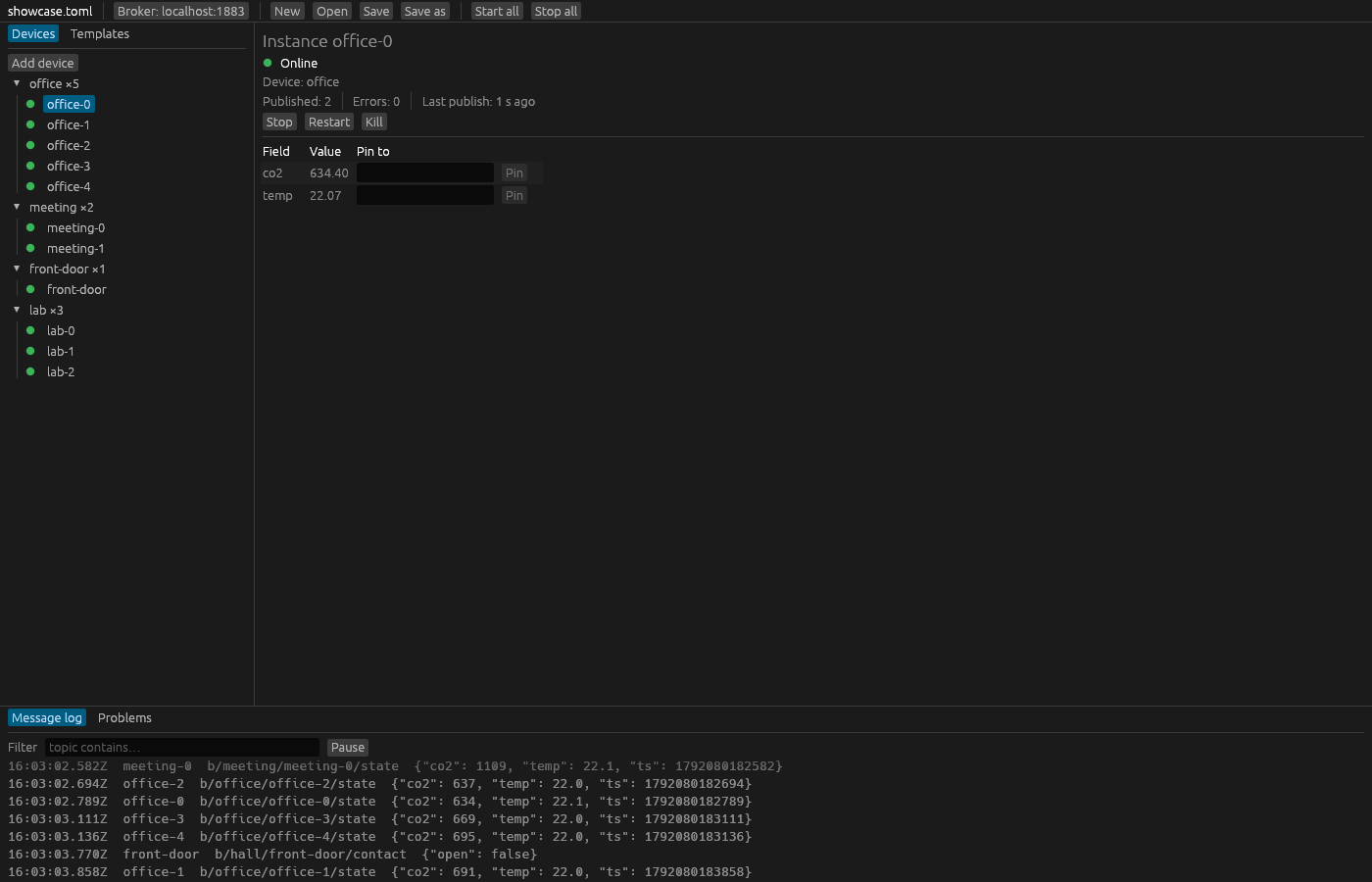
The window has four parts: the top bar, the left panel with your devices and templates, the detail panel in the middle, and the bottom panel with the message log and the problems. You can resize the left and bottom panels by dragging their edges.
Top bar
From left to right:
- The project's name. This is the file name, or untitled for a project you have not saved yet. A
*after the name means there are unsaved changes. The window title shows the same, for exampleSenzor — showcase.toml*. - Broker: localhost:1883 shows the broker's host and port. Click it to open the broker settings.
- New, Open, Save and Save as work on the project file. See Files.
- Start all and Stop all start and stop every device. See Running devices.
- starting devices… can appear for a moment after you open another project. Hover over it to read Waiting for the previous project's devices to go offline: the new project's devices start once the old ones are offline (see Autostart).
Left panel
The left panel has two tabs.
Devices lists every device in the project, with its instances under it. A device shows its ID and instance count, such as office ×5. Each instance has a coloured dot for its status:
| Dot | Status |
|---|---|
| Green | Online |
| Amber | Connecting or Reconnecting |
| Grey | Stopped |
| Red | Failed |
Click a device or an instance to show it in the detail panel. Right-click it for a menu that starts, stops, restarts and kills it (Running devices). Add device at the top adds a new device and selects it.
Templates lists the templates. Built-in lists the templates that ship with Senzor (co2, temperature, humidity). Project lists the project's own templates. Add template adds a new template to the project and selects it.
Detail panel
The middle of the window shows what you selected on the left:
- An instance: its status, counters and live values, where you can also pin values. See Instance view.
- A device: the device editor. See Editing devices.
- A project template: the template editor with a live preview. See Editing templates.
- A built-in template: a read-only view with Copy into project….
With nothing selected it says Select a device, an instance or a template on the left.
Bottom panel
The bottom panel has two tabs: Message log and Problems.
Message log
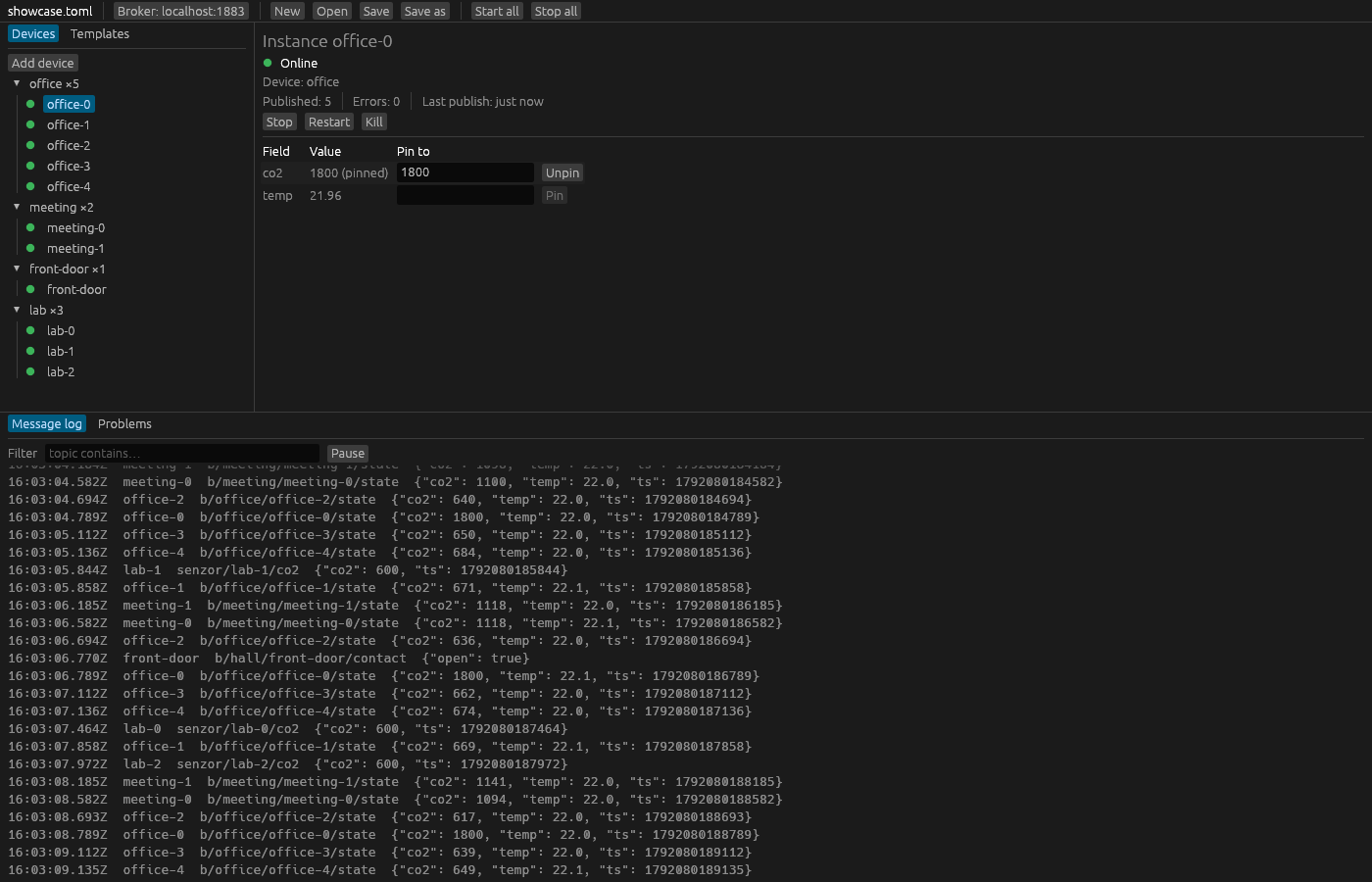
The message log lists the messages your instances publish, newest at the bottom. Each row shows:
- The time in UTC with milliseconds, for example
14:02:11.123Z. - The instance ID.
- The topic.
- The payload. Line breaks and runs of spaces become one space, and a payload longer than 200 characters is cut off with
….
The log keeps the last 1,000 messages of all instances together. It shows the messages your templates define, not the online and offline availability messages. While you are scrolled to the bottom, the list follows new messages.
- Filter shows only the rows whose topic contains the text you type. The match is case-sensitive.
- Pause freezes the list so you can read it while the devices keep publishing. Resume shows the live log again.
Problems
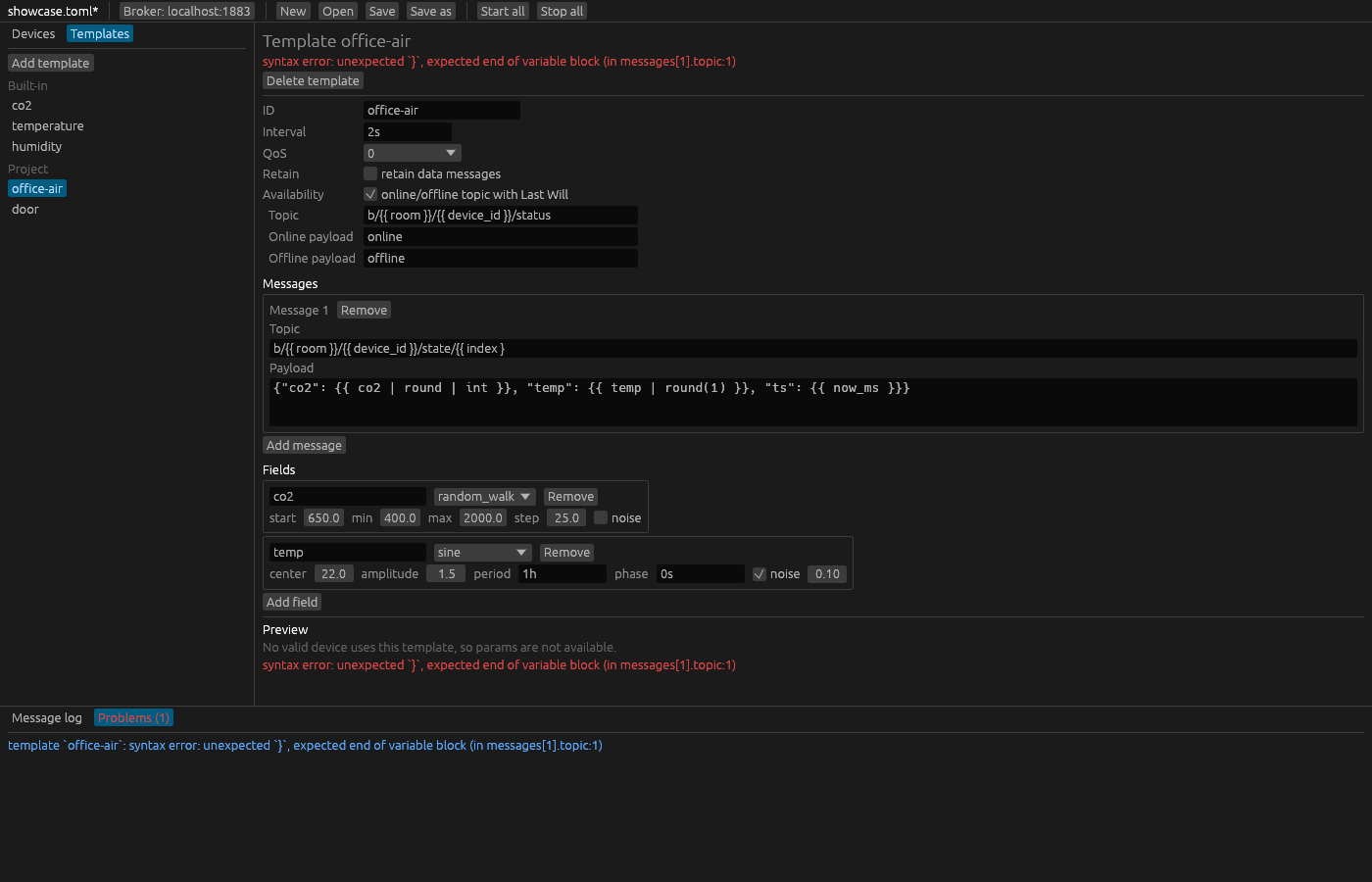
Senzor validates the project after every edit. While the project is valid, the tab reads Problems and shows No problems. When something is wrong, the tab's label turns red and counts the problems, for example Problems (2).
Each problem names what it is about, then what is wrong, for example:
device `bad`: unknown template `nope`Click a problem to go to it: a device or template problem selects that device or template (switching the left tab if needed), and a broker problem opens the broker settings.
A device with problems cannot start, and neither can the devices of a template with problems. A broker problem stops every device from starting. Instances that were already running keep running with their last valid settings; see Editing while running. The validation errors reference explains each message.
The showcase project
The screenshots in this guide show examples/showcase.toml: four devices, three of them on the project's own templates office-air and door, and lab on the built-in co2 template. Open it to follow along.
# The demo project the documentation's screenshots are taken from.
[broker]
host = "localhost"
port = 1883

[simulation]
seed = 42

[[templates]]
id = "office-air"
interval = "2s"
availability = { topic = "b/{{ room }}/{{ device_id }}/status", online = "online", offline = "offline" }

[[templates.messages]]
topic = "b/{{ room }}/{{ device_id }}/state"
payload = '{"co2": {{ co2 | round | int }}, "temp": {{ temp | round(1) }}, "ts": {{ now_ms }}}'

[templates.fields.co2]
generator = "random_walk"
start = 650
min = 400
max = 2000
step = 25

[templates.fields.temp]
generator = "sine"
center = 22
amplitude = 1.5
period = "1h"
noise = 0.1

[[templates]]
id = "door"
interval = "3s"
availability = { topic = "b/{{ room }}/{{ device_id }}/status", online = "online", offline = "offline" }

[[templates.messages]]
topic = "b/{{ room }}/{{ device_id }}/contact"
payload = '{"open": {{ open | tojson }}}'

[templates.fields.open]
generator = "sequence"
values = [false, false, true, false]

[[devices]]
id = "office"
template = "office-air"
count = 5
params = { room = "office" }
autostart = true

[[devices]]
id = "meeting"
template = "office-air"
count = 2
params = { room = "meeting" }
autostart = true
fields.co2 = { start = 1100 }

[[devices]]
id = "front-door"
template = "door"
params = { room = "hall" }
autostart = true

[[devices]]
id = "lab"
template = "co2"
count = 3
autostart = true