Editing templates
Change a template's settings, messages and fields, and check the result in the live preview.
Open the Templates tab in the left panel and click a template under Project to edit it. Add template creates a working template called template, with one message on senzor/{{ device_id }}/value and one random_walk field named value, and selects it.
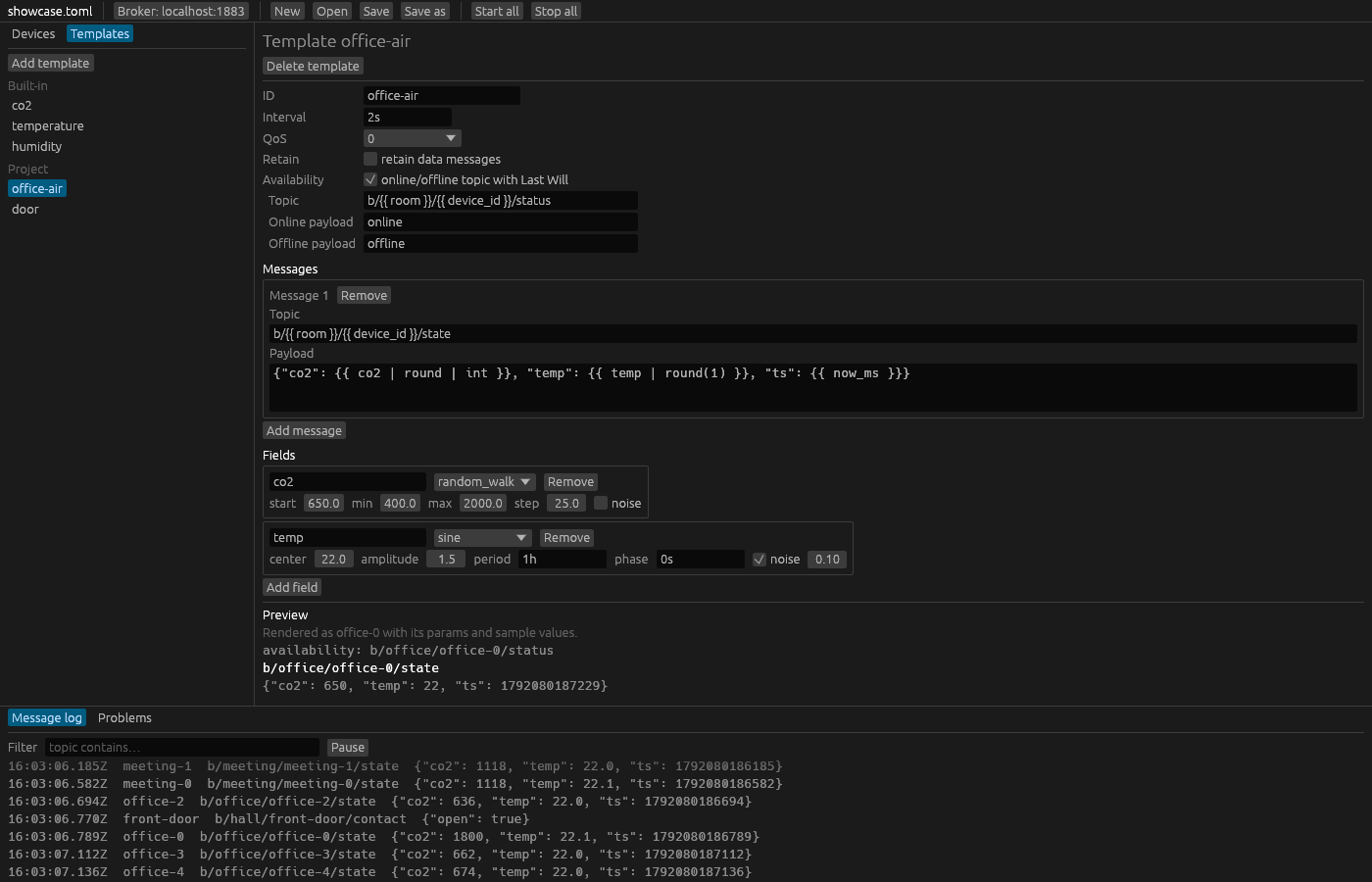
Every change goes into the project as you make it, and Senzor validates the project again. Problems with the template appear in red under the heading. Running instances keep their settings until you restart them (Editing while running).
Delete template removes the template from the project without asking. Devices that still use it then report an unknown template in the Problems tab.
Settings
| Label | What it sets |
|---|---|
| ID | The template's ID, which devices refer to. |
| Interval | How often instances publish, as a duration such as 10s, 500ms or 1h. |
| QoS | The QoS of the data messages: 0, 1 or 2. |
| Retain | retain data messages sets the retain flag on the data messages. |
| Availability | online/offline topic with Last Will turns on the availability topic and its payloads. |
Renaming a template
Type the new ID into the ID box. Nothing changes while you type; the new ID applies when you press Enter or leave the box. If the ID cannot be used, the reason appears in red next to the box, for example when it is empty, already taken, or the ID of a built-in template. Devices that use the template follow the rename, so they keep working.
Durations
The Interval box takes a duration like 10s, 500ms or 1h. Text that is not a duration stays in the box with the hint use e.g. 10s, 500ms, 1h, and the interval keeps its previous value until you correct it.
Availability
Ticking online/offline topic with Last Will adds three boxes, filled in with a starting point:
- Topic:
senzor/{{ device_id }}/status - Online payload:
online - Offline payload:
offline
Availability and Last Will explains when each payload is sent.
Messages
Each message is a group named Message 1, Message 2 and so on, with a Topic box, a multi-line Payload box and a Remove button. Add message adds a message on senzor/{{ device_id }}/value with the payload {{ value }}. Topics and payloads are templates; the template variables reference lists what you can use in them.
Fields
Each field has a name box, a generator picker, a Remove button and the generator's parameters. Add field adds a random_walk field named field (start 50, min 0, max 100, step 1).
Field names work like the template ID: a rename applies when you press Enter or leave the box. Devices that override the field keep their overrides under the new name.
The generator picker offers constant, random_walk, sine, uniform and sequence. Choosing another generator replaces the field's parameters with that generator's defaults. The editor shows these parameters:
| Generator | Parameters |
|---|---|
constant | value, noise |
random_walk | start, min, max, step, noise |
sine | center, amplitude, period, phase, noise |
uniform | min, max, noise |
sequence | values, loop, noise |
- period and phase are durations, like Interval.
- noise is a checkbox. Ticking it adds noise of 0.1, which you can then change.
- values takes a comma-separated list such as
open, closed. Each item is read as a number if it can be, then astrueorfalse, and otherwise as text. Empty items are skipped.
What each parameter does is in the generators reference.
Typed values
The value of a constant field has a type selector next to its box: text, number or bool. Typing never changes the type, so 007 typed into a text value stays the text "007" and does not become the number 7.
- A number value only accepts a number. Anything else stays in the box with the hint use a number, e.g. 42 or 22.5, and the field keeps its previous value.
- A bool value only accepts
trueorfalse(hint use true or false). - A text value keeps exactly what you type, spaces included.
To change the type, pick it in the selector. Types that the text in the box does not fit are disabled; hover over one to see why. Device params use the same selector (Editing devices).
Preview
The Preview section at the bottom renders the template's topics and payloads as you edit, before you save. It renders them as the first instance that uses the template would, with that instance's params and field overrides, and says so: Rendered as office-0 with its params and sample values. In the showcase project, the state topic of office-air renders as b/office/office-0/state.
The sample value of each field is its starting value: the constant value, the random_walk start, the sine center, the uniform min, or the first sequence value.
If no valid device uses the template, the preview says No valid device uses this template, so params are not available. A template that uses params then shows an error for the missing param.
The preview shows the availability topic (as availability: …) and each message's topic and payload. A message that fails to render shows its error in red, such as message 1: ….
Built-in templates
Click a template under Built-in to look at it. Built-in templates are read-only: the view shows the template's settings greyed out, with its preview, and the note Built-in templates are read-only. Copy one into the project to change it.
To change one, click Copy into project…. The dialog asks for a New template ID and suggests one, such as co2-copy (or co2-copy-2 when that is taken). Click Copy, and the copy appears under Project and opens in the editor. Devices that use the built-in keep using it; switch their Template to the copy in the device editor. A project template cannot reuse the ID of a built-in template.
The built-in templates reference lists what each one publishes.