Broker settings
Set the MQTT broker every instance connects to, with its client IDs, credentials and TLS.
All instances of a project connect to one broker. To change it, click the Broker: localhost:1883 button in the top bar, which shows the current host and port. Clicking a broker problem in the Problems tab opens the same window.
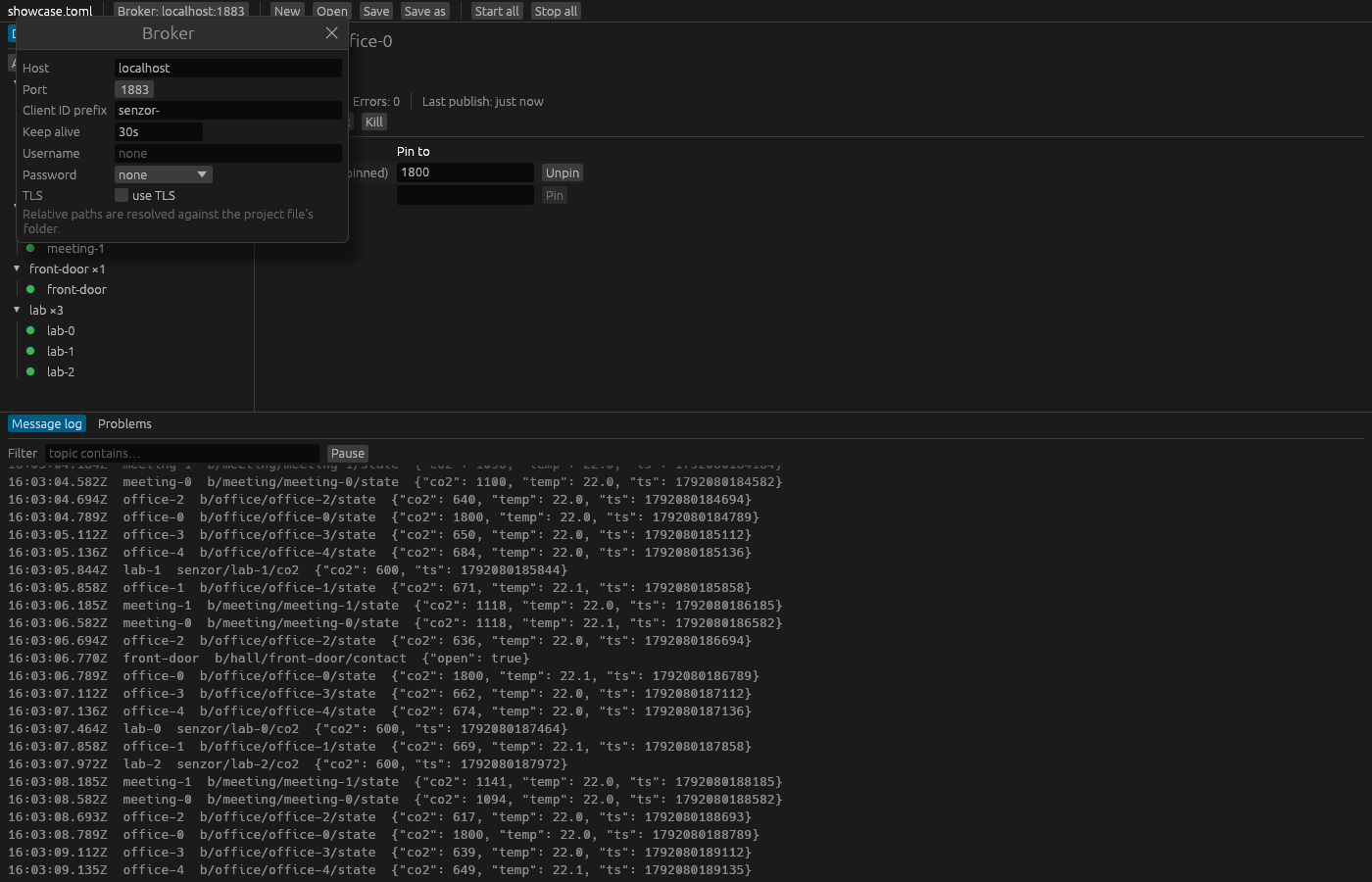
The Broker window edits the project's [broker] section. Changes go into the project as you type. Instances that are already running keep their connection and show restart to apply until you restart them. Problems with the broker settings appear in red at the top of the window, and while there are any, no device can start.
| Label | Key in the file | Default |
|---|---|---|
| Host | host | localhost |
| Port | port | 1883 |
| Client ID prefix | client_id_prefix | senzor- |
| Keep alive | keep_alive | 30s |
| Username | username | none |
| Password | password or password_env | none |
| TLS | [broker.tls] | off |
Client ID prefix
Each instance connects with the prefix followed by its instance ID as its client ID, so with the default prefix, instance office-0 connects as senzor-office-0. A broker allows one connection per client ID, so give each copy of a project its own prefix when several copies use the same broker.
Keep alive
Keep alive takes a duration like 30s or 1m, and must be at least 1 second. Text that is not a duration stays in the box with the hint use e.g. 10s, 500ms, 1h, and the setting keeps its previous value.
Username and password
Leave Username empty to connect without credentials. A password needs a username.
The selector next to Password says where the password comes from:
- none: no password.
- in the file: type the password into the box. Senzor stores it in the project file as
password, in plain text. - from env var: type the name of an environment variable, which starts as
MQTT_PASSWORD. Senzor stores the name aspassword_envand reads the variable from the environment Senzor runs in. If the variable is not set, the Problems tab says so and no device can start.
Use from env var to keep the password out of the project file, for example when you commit the file to a repository:
[broker]
host = "mqtt.example.com"
username = "senzor"
password_env = "MQTT_PASSWORD"
TLS
Tick use TLS to connect over TLS. Three more boxes appear:
- CA file: the certificate authority that signed the broker's certificate, as a PEM file. Leave it empty to trust the system's root certificates.
- Client certificate and Client key: PEM files for brokers that require client certificate authentication. Set both or neither; they also require a CA file.
Ticking use TLS does not change the port. Brokers usually accept TLS on a different port, often 8883, so set Port as well.
Senzor reads the files whenever it validates the project, so a file it cannot read shows up in the Problems tab. Relative paths are resolved against the project file's folder, as the note at the bottom of the window says. For a project you have not saved yet, they are resolved against the folder you started Senzor in. The project file reference lists every broker key.