Editing devices
Set a device's template, instance count and IDs, params, field overrides, interval and autostart.
Click a device in the Devices tab, such as office ×5, to open the device editor. Add device creates a device called device on the project's first template (or the built-in co2 when the project has none of its own) and selects it.
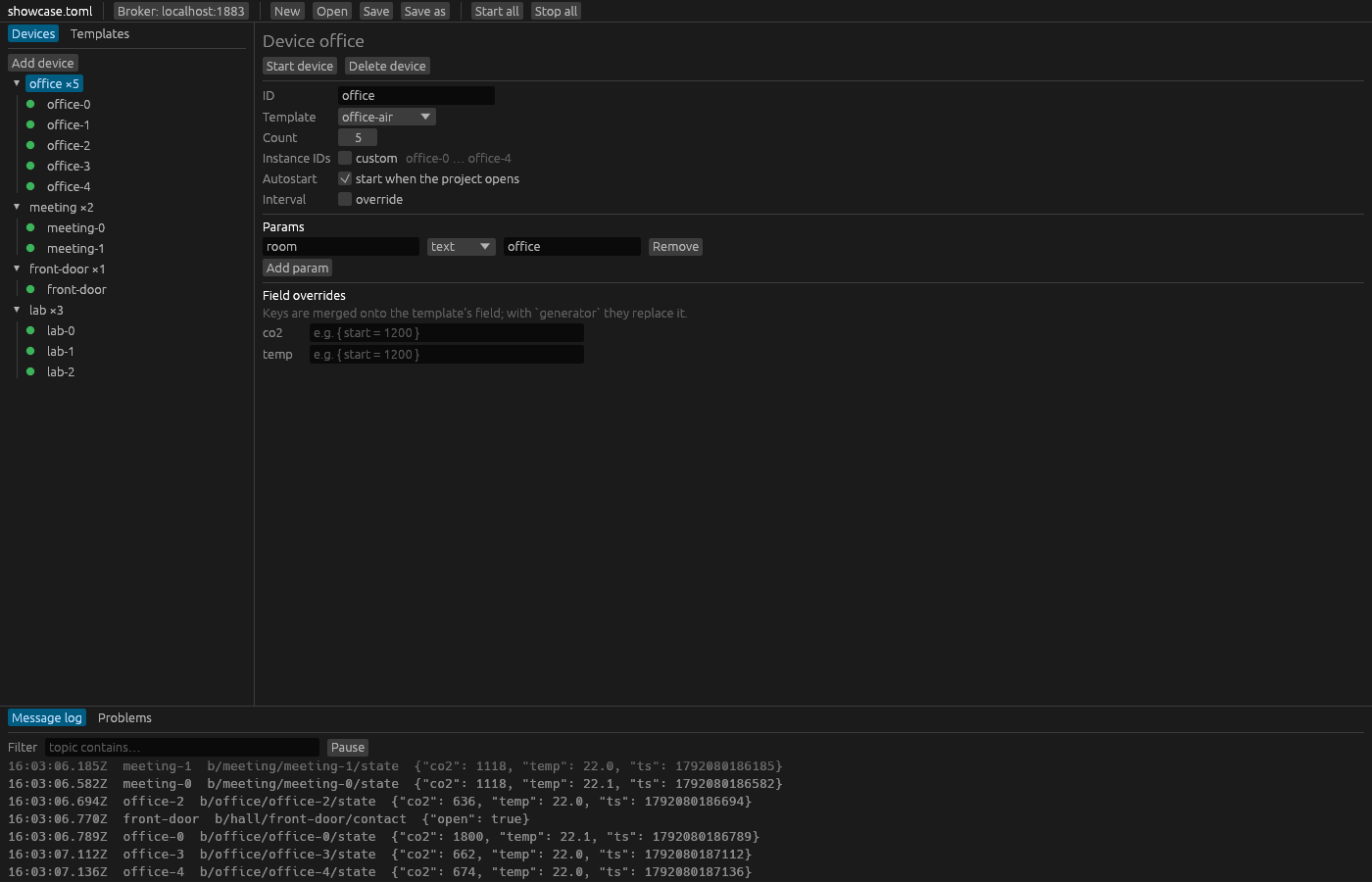
The heading names the device, for example Device office. Problems with the device appear in red under it. As with templates, every change goes into the project at once, and running instances keep their settings until you restart them (Editing while running).
Start device and Delete device
Start device starts the device's instances that are not running. It is disabled while the device cannot run; hover over it to see where the problems are:
- Fix the problems listed above first: the device's own problems, shown under the heading.
- Fix the problems in the Problems tab first: the device itself is fine, but its template or the broker settings have problems.
Delete device removes the device from the project without asking. Instances of it that are running keep running as orphans until you stop them (Running devices).
Settings
| Label | What it sets |
|---|---|
| ID | The device's ID. A rename applies when you press Enter or leave the box. |
| Template | The template the device uses: the built-in templates first, then the project's. |
| Count | How many instances the device runs, from 1 to 10,000 in the editor. |
| Instance IDs | The IDs of the instances (see below). |
| Autostart | Ticked (start when the project opens): the device starts when the project opens. Unticked: it waits for you to start it. |
| Interval | Tick override to give the device its own interval instead of the template's. |
Instance IDs
Without custom, the editor shows the IDs Senzor generates from the device ID: office for a device with one instance, office-0 … office-4 for five.
Tick custom to write your own pattern. The box starts with the pattern Senzor was already using, {{ id }} for one instance or {{ id }}-{{ index }} for more, so the IDs do not change until you edit it. While the pattern is one of these defaults, it follows the Count: going from one instance to three switches it to {{ id }}-{{ index }}. Once you edit the pattern, it stays as you wrote it. Templates, devices and instances explains the patterns.
Changing the ID, Count or Instance IDs while instances run can drop the IDs of running instances. Those keep running as orphans until you stop them (Running devices).
Interval override
When you tick override, the box starts at the template's interval (or 10s when the device's template is unknown), so nothing changes until you edit it. Untick it to go back to the template's interval. The box takes durations like 10s, 500ms or 1h, as in the template editor.
Params
Params are values a device passes to its template, such as room = "office" in the showcase project, used in the template as {{ room }}.
Each param is a row with a name box, a type selector, a value box and Remove. Add param adds an empty text param called param. A new name applies when you press Enter or leave the box, so the rows do not reorder while you type.
Values are typed. The selector offers text, number and bool, and typing never changes the type:
- A text value keeps exactly what you type, spaces included, so
007stays the text"007". - A number value only accepts a number; anything else stays in the box with the hint use a number, e.g. 42 or 22.5 and the param keeps its previous value.
- A bool value only accepts
trueorfalse.
To change the type, pick it in the selector. Types that the text in the box does not fit are disabled; hover over one to see why. Switching keeps the text you typed: 42x in a number box becomes the text "42x" when you switch to text.
Field overrides
Field overrides has one row for each field of the device's template. A row takes an inline TOML table that changes that field for this device only. As the editor notes: Keys are merged onto the template's field; with generator they replace it.
For example, the showcase's meeting device starts its CO2 higher than the other rooms:
fields.co2 = { start = 1100 }In the editor, that is { start = 1100 } in the co2 row.
- An empty row means no override.
- Text that is not a valid inline table stays in the box with the error under it, and the device keeps its previous override until you fix it.
If you switch the device to a template that lacks an overridden field, the override shows in red as, for example, co2 (not in the template), with a Remove override button.
Templates, devices and instances explains how overrides combine with the template's fields, and the project file reference lists the keys.