Editing while running
What happens to running devices when you change the project in the GUI.
In the GUI you can edit a project while its devices run. An edit never changes a running instance by itself: each instance keeps the settings it started with until you restart it. The GUI marks the instances that run with outdated settings and blocks the devices that cannot start.
This page is about the GUI. senzor-cli reads the project once when it starts; to apply changes, stop it and run it again.
Validation on every edit
Every edit validates the whole project again. The Problems tab at the bottom of the window lists every problem and shows how many there are, for example Problems (1). Click a problem to go to the device, template or broker settings it is about.
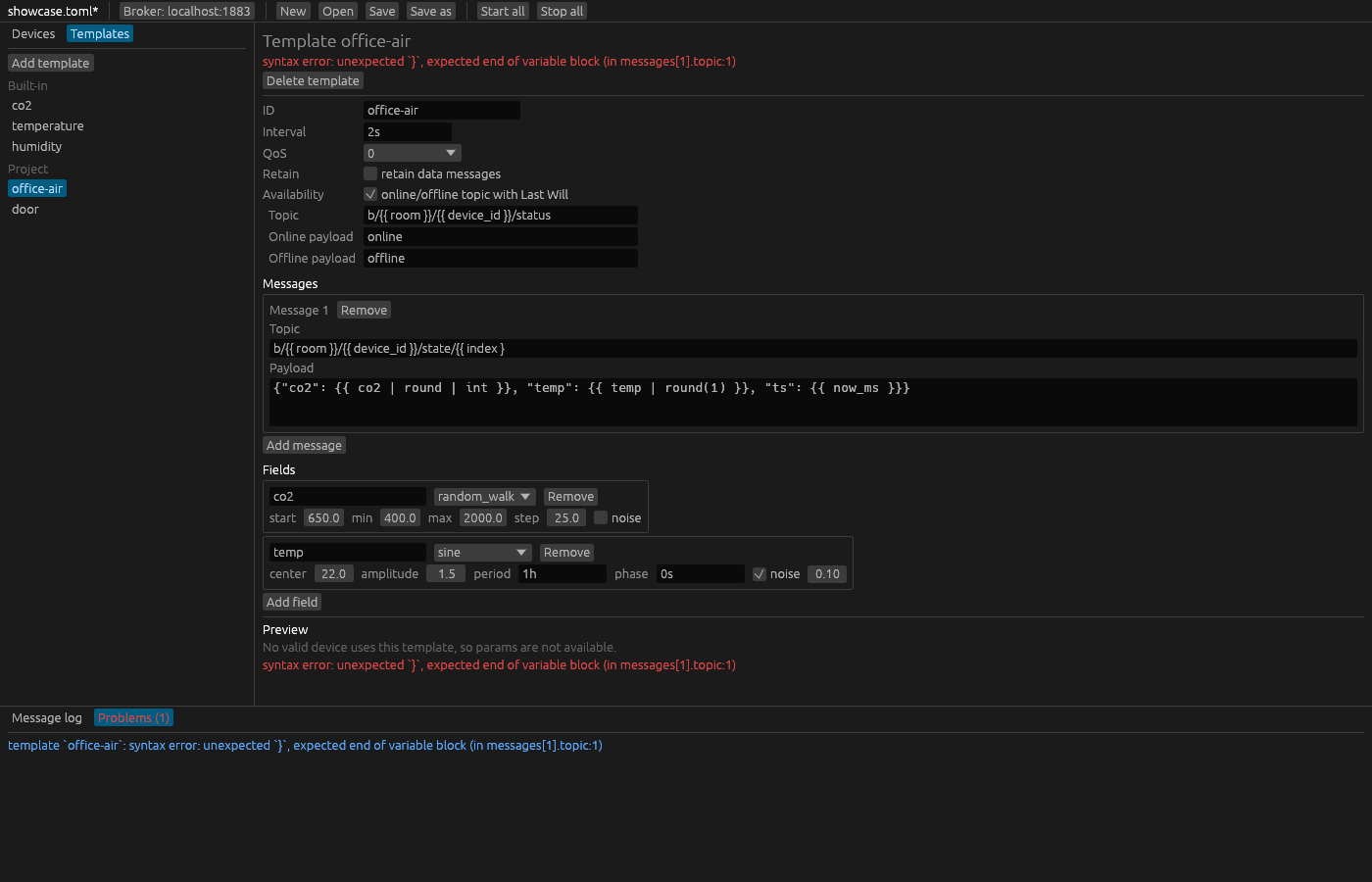
Devices with problems are blocked
A device with problems cannot start until you fix them. In the Devices tab it reads like office ×5 (has errors), and both its Start device button and the Start item in its right-click menu are disabled. A device can also be blocked by a problem that is not its own:
- a template with problems blocks every device that uses it;
- a broker problem, such as a
password_envvariable that is not set or a TLS file that cannot be read, blocks every device.
If the device was running when the problem appeared, its running instances keep running with their last valid settings. They carry the badge device has errors, and the instance view says: "Its device has problems (see the Problems tab); it keeps running with its last valid settings." You can stop or kill them, but not restart them, since there are no valid settings to restart with. Once you fix the problem, they belong to their device again, marked restart to apply if their settings changed.
Changed settings: restart to apply
When an edit changes the settings of a running instance, such as its template, params, field overrides, interval or the broker settings, the instance carries on with the settings it started with. It gets the badge restart to apply, and its instance view says: "The project changed; restart this instance to apply it."
Restart stops the instance cleanly and starts it again with the current settings. It is in the instance view and in the right-click menu of the instance. The right-click menu of a device has a Restart that restarts all of the device's running instances. A restart begins a new run: generators start afresh and pins are cleared (see Values and generators).
Instances that are not running always start with the current settings, so they never need a restart.
Removed instances
If you delete a running device, lower its count, or change its instance IDs (renaming the device does that too), the running instances that are no longer part of the project keep running. Senzor calls them orphans:
- an orphan of a device that still exists is listed under that device, with the badge removed;
- the orphans of a deleted or renamed device are listed under the old name, shown as
office (removed).
The instance view of an orphan says: "This instance is no longer in the project; it disappears when stopped." Stop or kill it; once it has stopped, it leaves the list.
New devices
A device you add while others run appears with its instances stopped. Autostart applies only when a project is opened, so start the new device yourself, or use Start all.
Opening another project
When you open another project, or start a new one with New, the devices of the previous project stop first and each goes offline cleanly. The new project's autostart devices start only after that. Its instances may use the same client IDs as the old ones, and if they connected first, the broker would drop the old connections and publish their Last Will: your consumers would see offline after the new online and take running devices for gone.
While the GUI waits, the top bar shows starting devices…; hovering it explains: "Waiting for the previous project's devices to go offline". Commands you give during the wait, such as Start all, run once it is over. Stop all cancels the pending autostart and those commands.